> ## Documentation Index
> Fetch the complete documentation index at: https://dune-automated-update-duneapi-openapi-files.mintlify.site/llms.txt
> Use this file to discover all available pages before exploring further.
# Hex
> Connect Dune to Hex's notebook-native analytics platform
Follow these steps to connect Dune as a data source in your Hex workspace.
## Add the Data Connection
Under Workspace settings, select Data sources.
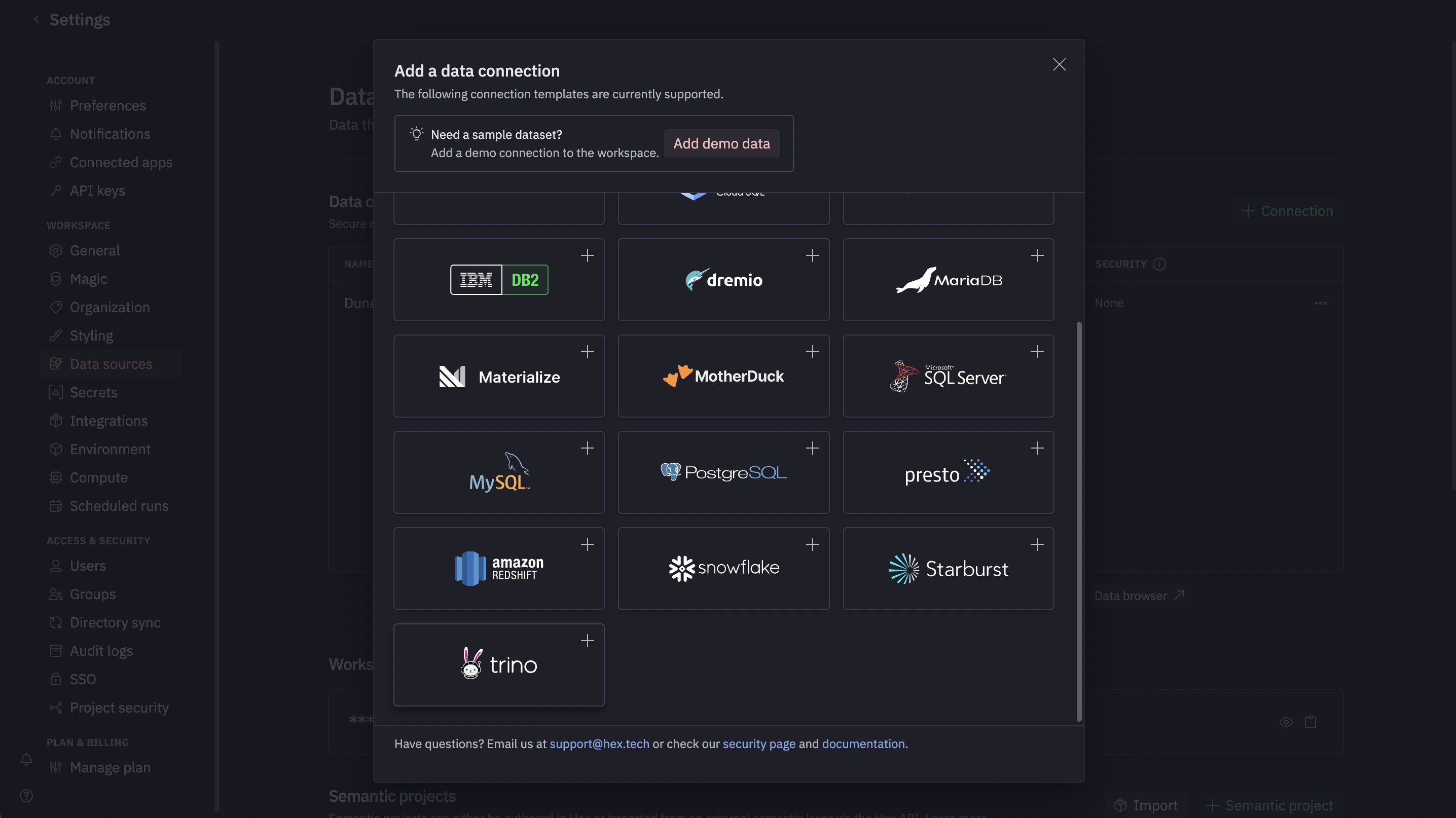
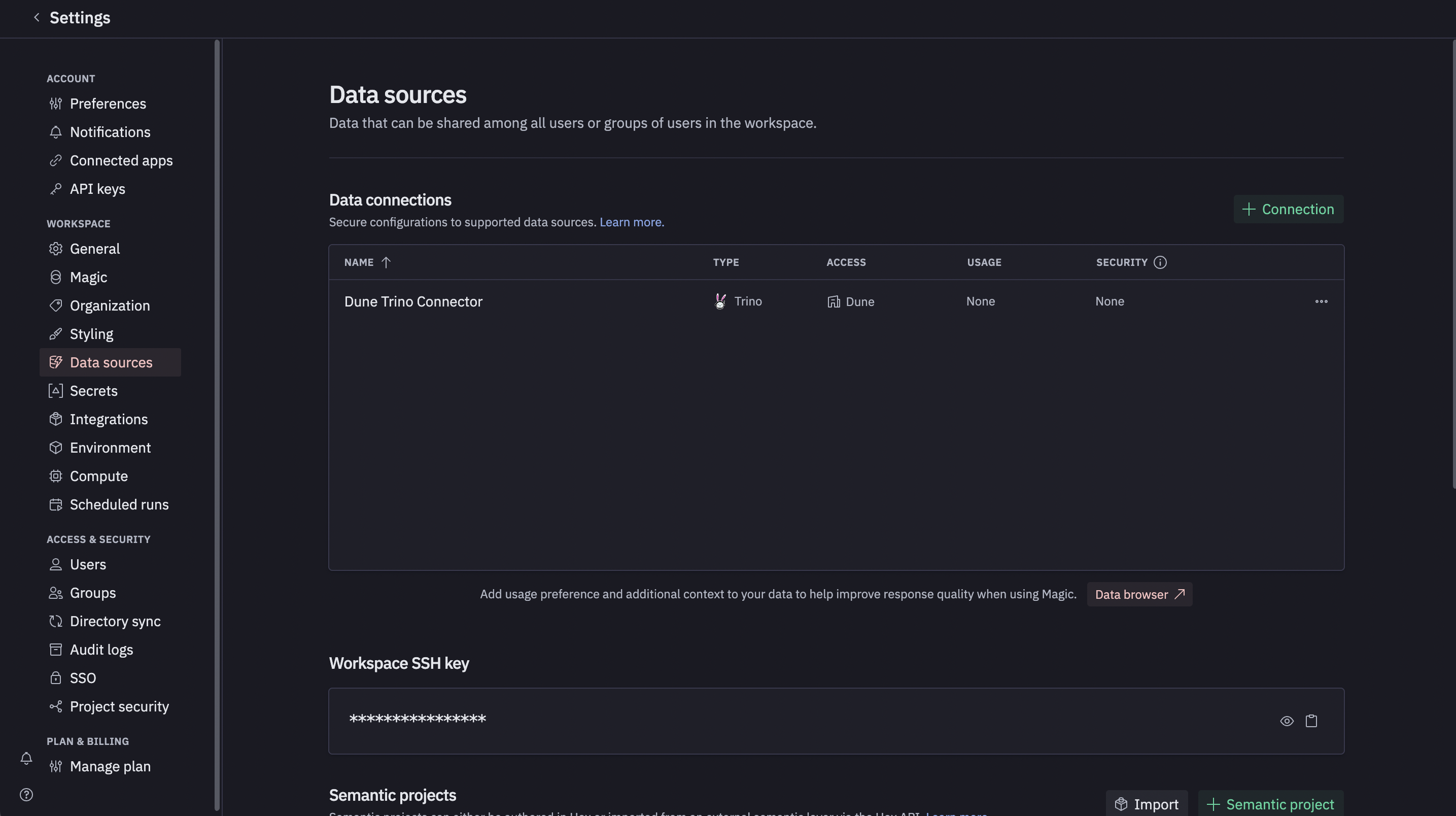 Click the green + Connection button, then select Trino from
the list of available connections.
Click the green + Connection button, then select Trino from
the list of available connections.
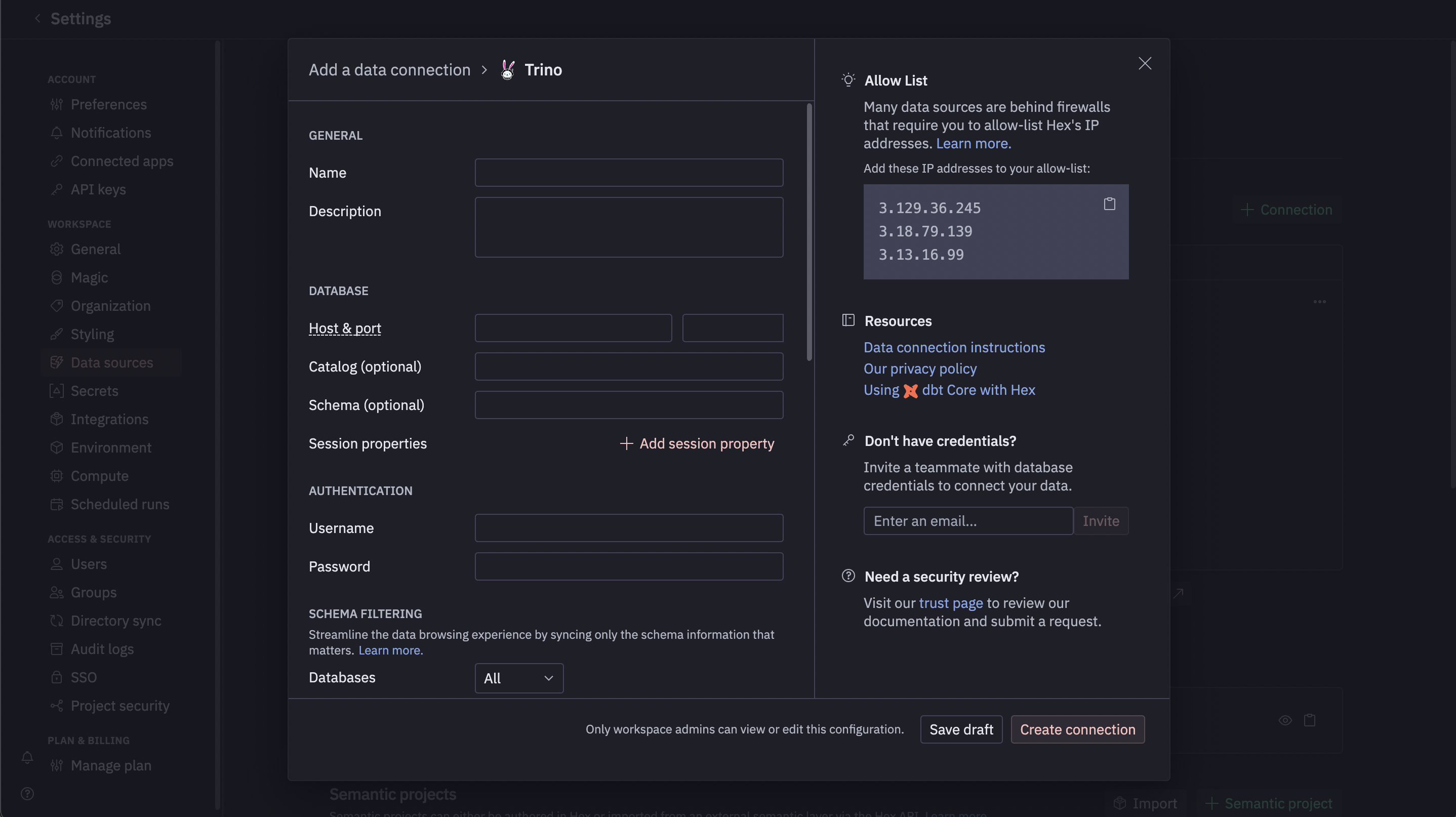
 Fill in the form fields using the values from the [Connection Parameters](/api-reference/connectors/trino/overview#connection-parameters) section.
 ## Run a Test Query
Once your data source is configured, you can query it directly from any Hex project.
Open an existing project or create a new one.
Add a new SQL cell to your notebook.
In the data source dropdown at the top of the cell, select your newly
created Dune SQL connection.
Paste the example query below into the cell and run it.
## Run a Test Query
Once your data source is configured, you can query it directly from any Hex project.
Open an existing project or create a new one.
Add a new SQL cell to your notebook.
In the data source dropdown at the top of the cell, select your newly
created Dune SQL connection.
Paste the example query below into the cell and run it.
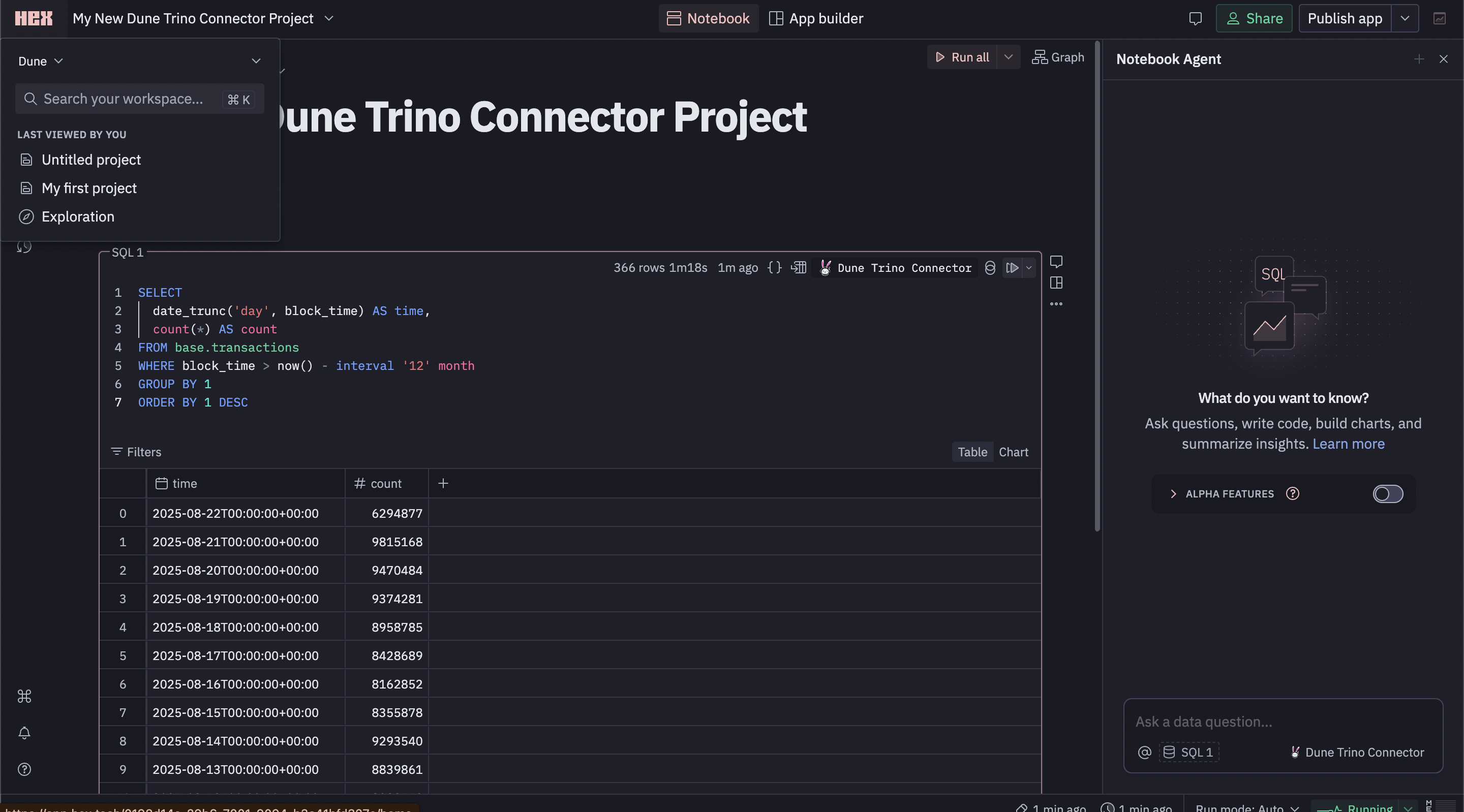 You can use this query to test your connection. It fetches the daily transaction count from the last year on Base.
```sql theme={null}
SELECT
date_trunc('day', block_time) AS time,
count(*) AS count
FROM base.transactions
WHERE block_time > now() - interval '12' month
GROUP BY 1
ORDER BY 1 DESC
```
You can use this query to test your connection. It fetches the daily transaction count from the last year on Base.
```sql theme={null}
SELECT
date_trunc('day', block_time) AS time,
count(*) AS count
FROM base.transactions
WHERE block_time > now() - interval '12' month
GROUP BY 1
ORDER BY 1 DESC
```